
Fake Data: Excel Sample Data Generator
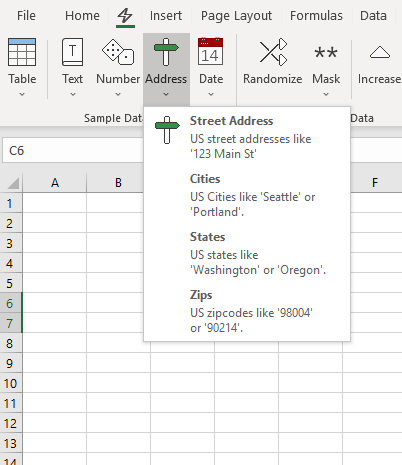
Need some data for a demo, a PivotTable, or a formula you’re trying out? Fake Data fills selected cells with sample names, emails, items, and numbers. You can also randomize existing values, increase or decrease numbers, or mask parts of a cell with Xs.
Looking for a fake Excel work screen? Try the browser spreadsheet demo.
Start in a blank workbook or save a copy before changing existing data. These commands can overwrite cell contents, so leave headers and formulas out of the selection. Replacing or masking selected cells does not make a whole workbook anonymous or safe to share.

Download Fake Data for Excel
Download Fake Data add-in (.zip)
How to install
Extract the ZIP, then follow the VBA and add-in setup instructions. Only allow VBA to run when you trust the file and understand what it does. On a work-managed computer, follow your organization’s rules for add-ins and macros.
Loading issues
Windows may block a downloaded VBA add-in. For a file you trust, check the extracted file’s Properties → General → Unblock, if that option appears, then reopen Excel. See the setup guide and Microsoft’s macro-security guidance. If your organization blocks it, ask IT about the approved way to use the add-in.
Workbook version
Want the macro-enabled workbook instead? Download the XLSM workbook (.zip).
Create sample data for practice
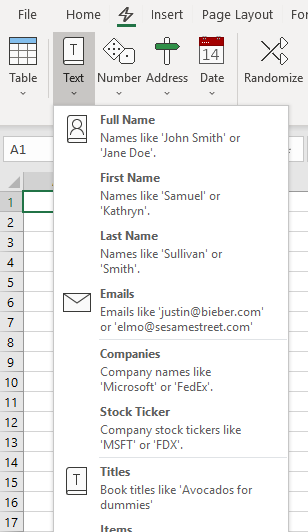
Use a fresh worksheet with clearly labeled columns, such as Name, Email, Item, and Amount. Fill the data one column at a time with the corresponding sample type. The add-in’s Sample Data menus include Full Name, Emails, Items, Stock Ticker, Number, Decimal, Percent, and Money.
Review the results before using them in an exercise. Generated values may not be related across columns, and sample email addresses should stay in mockups and test sheets. Don’t use them as a mailing list or send messages to them. Stock ticker examples are sample text, not live stock prices.
Make practice data for a PivotTable
Give every column a header and keep numeric amounts in one column. Repeat a few item labels, such as Notebook, Mug, and Pen, to create groups you can summarize.
Select the table, including its headers, and choose Insert → PivotTable. On a new worksheet, put Item in Rows and Amount in Values. Check that Amount uses Sum. If it shows Count, check the source column for text or mixed data types. After changing source values, refresh the PivotTable. See Microsoft’s PivotTable guide for details.
Randomize or mask existing data
Work on a copy and select only the values you want to change. Randomize changes selected cell values; Increase and Decrease alter selected numbers. Review formulas, totals, and relationships between columns afterward.
Masking has limits
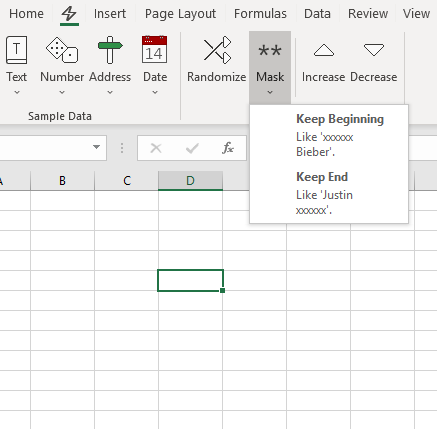
Mask replaces portions of a value with Xs. Its menu includes Keep Beginning and Keep End options. This is limited obfuscation: changing selected cells does not establish that a workbook is anonymized or ready to share.
Review the whole file, including hidden sheets, comments, links, and cached data. Microsoft’s Document Inspector guide explains what it can find and its limits. For a demo, start with a fresh workbook and sample data whenever possible.
Questions
Does Randomize shuffle the rows?
Randomize changes the values in selected cells. Use it when you want altered sample values.
Can I use this in Excel for the web?
This tool uses VBA. Excel for the web cannot run VBA macros.
Can I generate numbers with an Excel formula?
In an Excel version that supports RANDARRAY, enter =RANDARRAY(20,1,1,100,TRUE) in a blank area to create 20 rows of whole numbers from 1 to 100. Leave room below the formula for the results. This is a built-in Excel option for numeric sample data.
For more background, see the VBA FAQ.