
Excel Date Picker
A modern date picker for Excel.
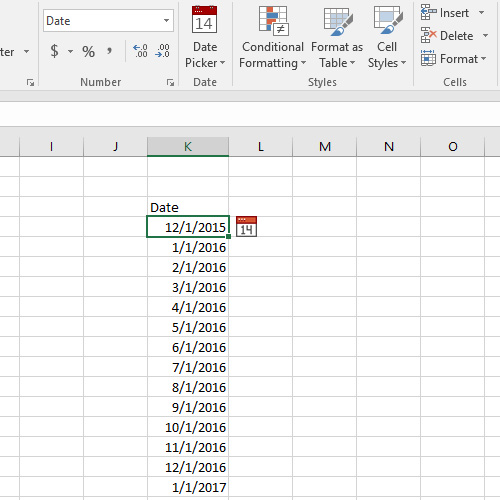

Download Excel Date Picker add-in (.zip)
The setup instructions below cover desktop Excel on Windows. This tool uses VBA, which Excel for the web cannot run.
Which download do I need?
The add-in: Use the download above for the regular Date Picker.
A starting workbook: Download a blank workbook with the picker included if you want to build your workbook around it.
The video example: Download the workbook from the demo.
A VBA UserForm: Use the separate Date Picker in a UserForm example. It includes source code you can adapt for your project.
How to load the add-in on Windows
Only allow VBA to run when you trust the file and understand what it does. On a work-managed computer, follow your organization's rules for add-ins and macros.
Download the add-in and extract the ZIP file.
If Windows has blocked the extracted add-in, close Excel. In File Explorer, right-click the extracted file and choose Properties. On the General tab, select Unblock, if it appears, then OK. Do this only for a file you trust.
For occasional use, keep the extracted add-in in a folder on your computer and double-click it when you need it. This is the on-demand loading method described in the setup guide.
If Excel still blocks it, check the troubleshooting section below. Unblocking a file does not override an organization's security policy. Microsoft's macro-security guidance explains the warning and file-specific unblock option.
Load it when Excel starts
For regular use, the setup guide explains how to put the add-in in your Excel XLSTART folder. Files in this folder open when Excel starts, so put only files you trust there.
To find the folder, open Excel's Visual Basic editor, select the Immediate window, and enter ?Application.StartupPath. Use the path Excel returns rather than copying someone else's folder path. Microsoft documents this property here.
How to pick a date
Select the worksheet cell you want to update.
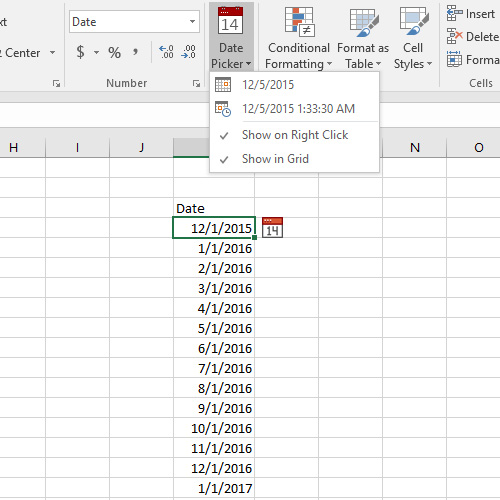
Open the picker from the ribbon.
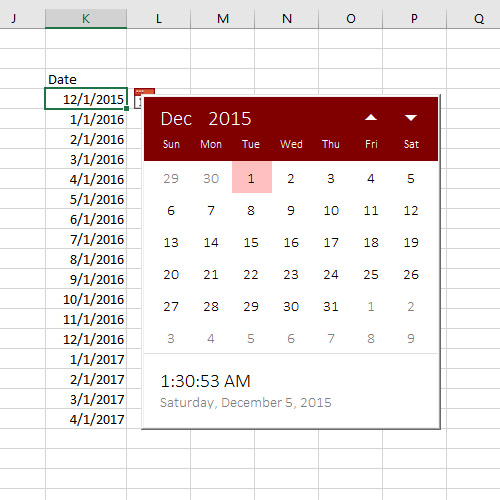
Choose a date. The picker updates the cell value.
Try it in a spare cell first if you're working in an important workbook.
Change how the date looks
You can change a date's display with Excel's cell formatting:
Select the date cell or cells.
Press Ctrl+1 to open Format Cells.
On the Number tab, choose Date, pick a format, and select OK.
For a specific layout, choose Custom and edit the Type box. For example, 18 October 2026 can display as:
yyyy-mm-dd: 2026-10-18
dd/mm/yyyy: 18/10/2026
mm/dd/yyyy: 10/18/2026
dd mmm yyyy: 18 Oct 2026 in English
These are Excel number-format examples. Language and regional settings can affect the display. See Microsoft's date-formatting guide for more options.
Troubleshooting and questions
I'm having trouble loading the add-in. What should I check?
Check the extracted add-in's file properties, using the steps above. Downloaded VBA add-ins can load in a disabled state while marked as coming from the internet. After unblocking a trusted add-in, close and reopen Excel.
If your organization has blocked macros, ask your IT team about the approved way to use the file. Don't enable all macros or turn off security protections to get it working. Microsoft's guidance for Excel add-ins covers this behavior.
Do I have to put it in XLSTART?
No. You can load it on demand by opening the add-in file when needed. XLSTART is the option for loading it automatically with Excel. See the two loading options.
Why does my date show as #####?
The column may be too narrow. Try widening it or double-clicking the column header's right border to fit the contents. Microsoft's formatting tips explain this common display issue.
Can I have the simple workbook from the YouTube video?
Yes, you can download the demo workbook here.
Can I use the date picker in a UserForm?
Yes. Start with the separate UserForm example and instructions, which include a workbook and source code. The UserForm video accompanies that example.
Can I put the date picker in my workbook without using the add-in?
Yes, if you copy everything over to it. An easier starting point is a blank workbook with the working date picker already included. Download that workbook here and build from it.
Do you support Excel 2003 and earlier?
My original date picker works with Excel 2003 and earlier, though I no longer support it. Download the legacy date picker.